Sunday, August 26, 2007

SCCS 2007 follow up

I just wanted to give my thanks to all who showed up. It was great to see those of you who I've worked with and meet some new faces too. If you have questions on any of the classes below, feel free to post a comment here or drop me an email.
  • MAX 9 and VIZ 2008 - Get Mental
  • AutoCAD Architecture 2008 - Feature Enhancements for AutoCAD Architecture 2008
  • Revit Architecture 2008 - Revit Architecture – Interoperability from Revit to 3ds MAX
  • CAD Management - How to Deal with 300 Users That All want it Their Way
Here is a link to U.S. CAD's website for handout downloads:
Handouts

Wednesday, July 25, 2007

That's a wrap!

Thanks for those who attended the webcast. I apologize for any technical difficulties you may have experienced trying to dial in for the audio portion. We are still new at the webcast technical issues and are trying to adapt and getting better with our second run. We are looking into other possibilities in the future to help minimize the problems. We recorded the webcast, but unfortunately the audio did not come through. I will re-record the audio in a few days when I have a moment to do so. When the finished recording is available for download, I will let those interested in it know about the details for download.

Friday, June 29, 2007

Harness the Power of Project Management in AutoCAD Architecture 2008

Learn how to harness the power of Project Navigator in ACA 2008 in the most robust version yet released.

What will be covered:

* Faster and easier management of External References
* Automation of Section and Elevation callouts referencing plot sheets
* Enforcement of office standards within the project environment

Webcast attendees will receive a $5 Starbucks Gift Card* as a token of our appreciation for spending time with us.

* Starbucks Gift Cards will only be sent out to companies and Autodesk software users located in Southern California.

Title:

Harness the Power of Project Management in AutoCAD Architecture 2008

Date:

Wednesday, July 25, 2007

Time:

10:00 AM - 11:00 AM PDT

System Requirements
PC-based attendees
Required: Windows® 2000, XP Home, XP Pro, 2003 Server, Vista

Macintosh®-based attendees
Required: Mac OS® X 10.3.9 (Panther®) or newer

Space is limited.
Reserve your Webinar seat now at:
https://www.gotomeeting.com/register/591838176

Thursday, June 21, 2007

Follow up to Webcast for Detail components

One question that was asked after the webcast was, "How do I get all the lines in a sheet keynote table to print?"

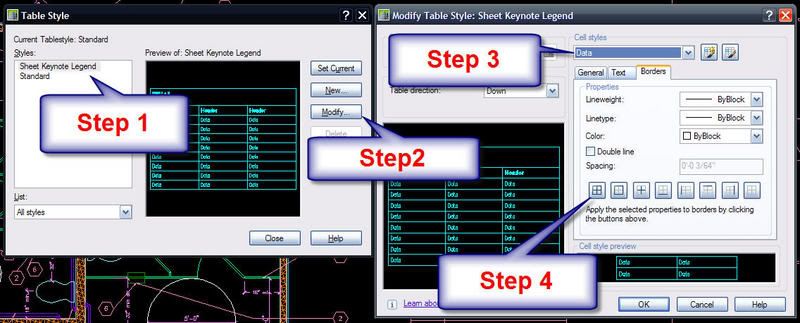
To allow all lines of the table style to print, you will need to modify the table style. Please
reference the image below the steps.

Go to the menu Format and choose Table Styles…
  • For step 1, select the Sheet Keynote Legend table style.
  • For step 2, click the modify button.
  • For step 3, select the appropriate component of the table in the drop down list.
  • For step 4, click the borders tab and click the button to give all cell edges border lines.
Note: you may need to do this to more than just the data portion of the table style – headers and other parts might need it too.


The follow up question to the solution above was: "Is there a way to change the style permanently so I won’t have to go through this every time?"

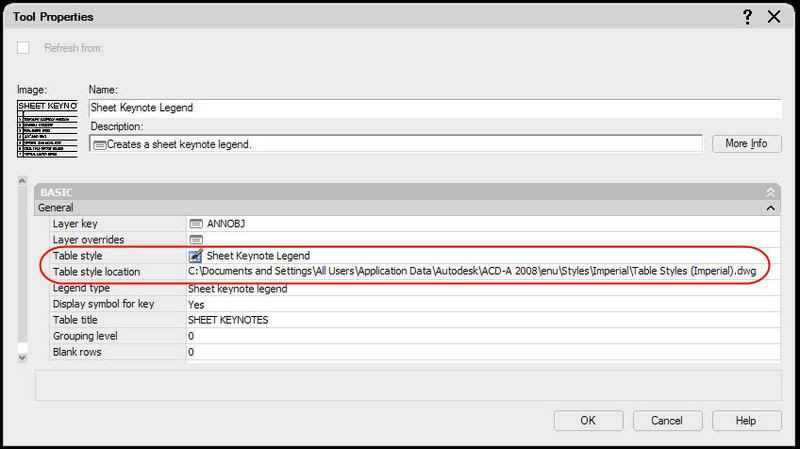
Right click the Sheet Keynote Legend tool on your tool palette that you are using and choose properties. Refer to the highlighted path in the image below. Browse to your file and setup the table style in that file to use the settings you want. Please keep in mind that just like any other AutoCAD drawing, once a style is defined in a drawing, it will need to be re-defined to use the new settings. I would recommend using Design Center to update the table styles being used in existing drawings.